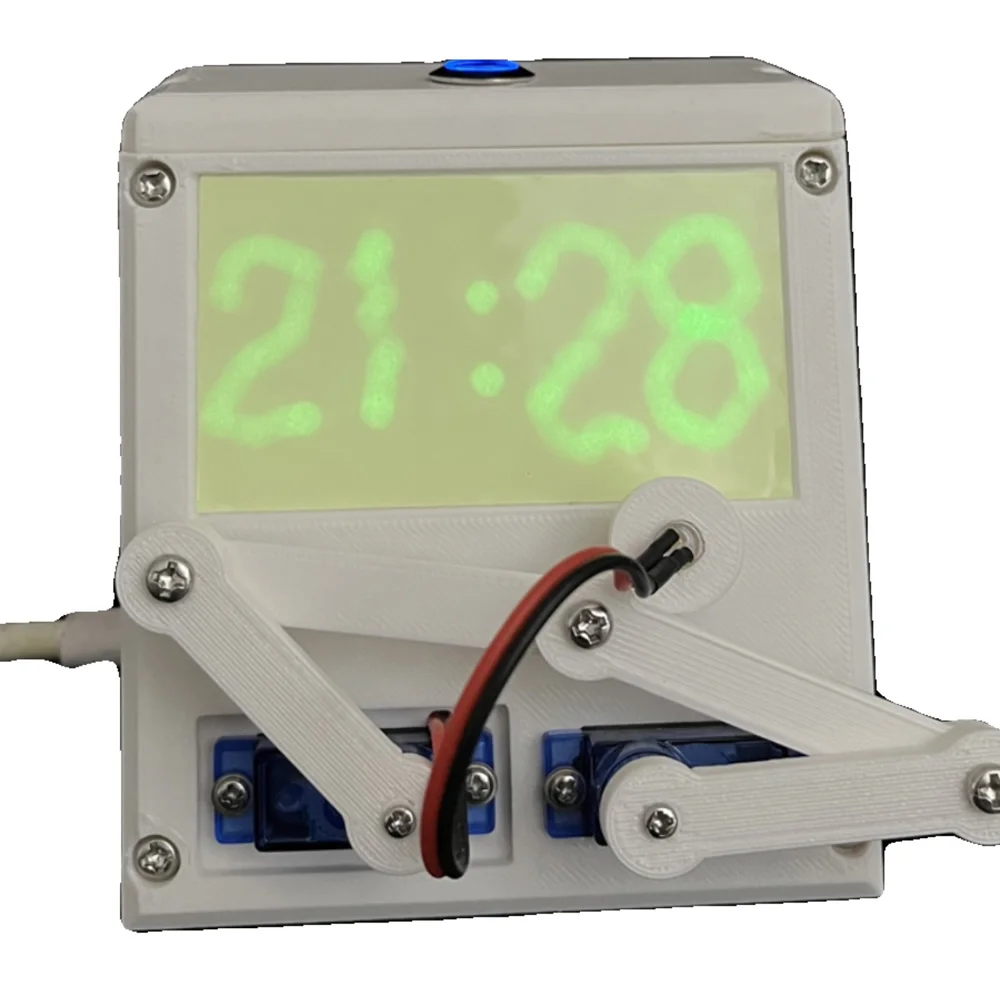
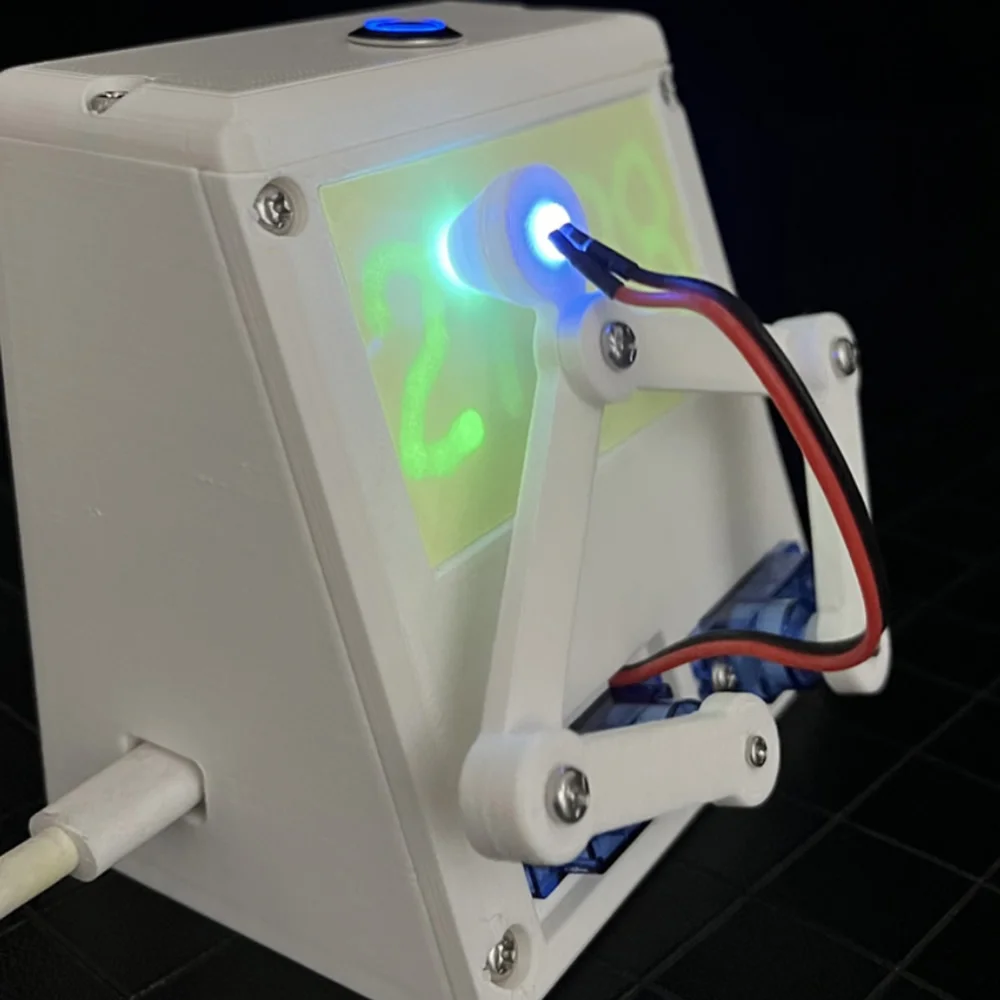
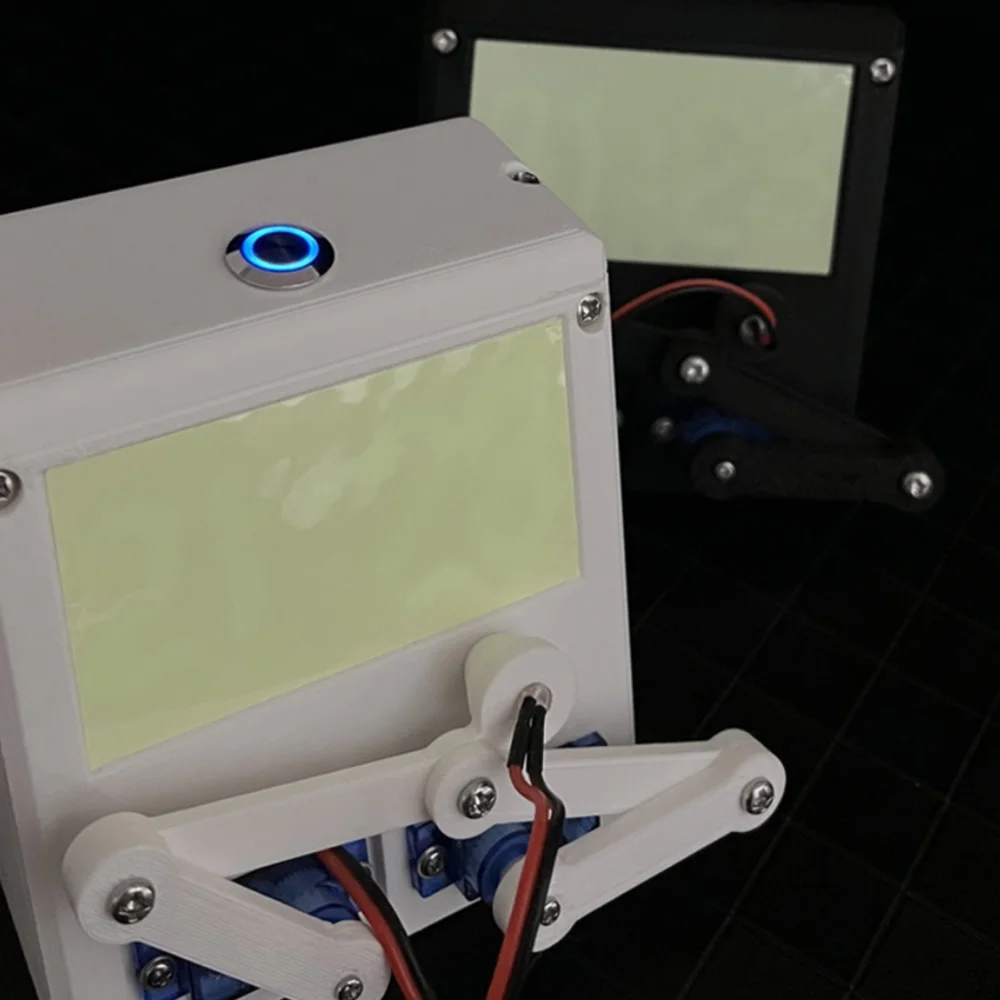
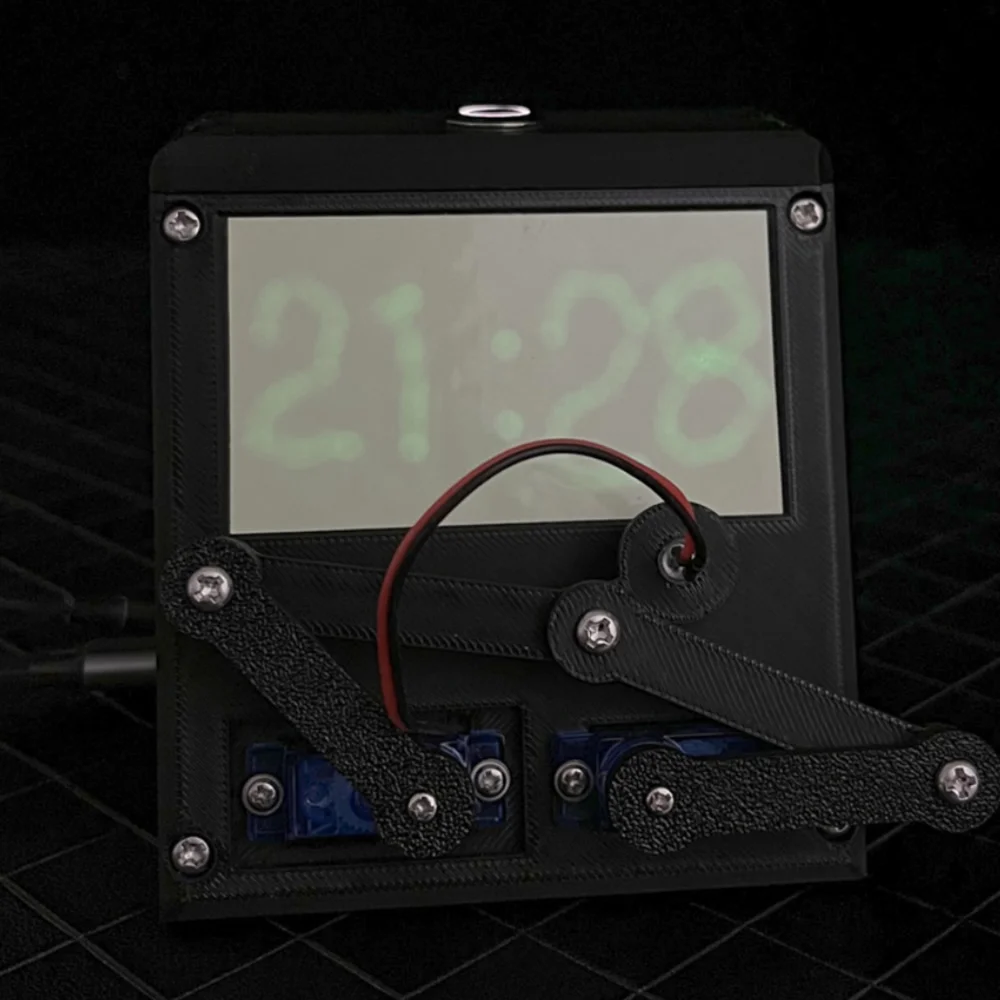
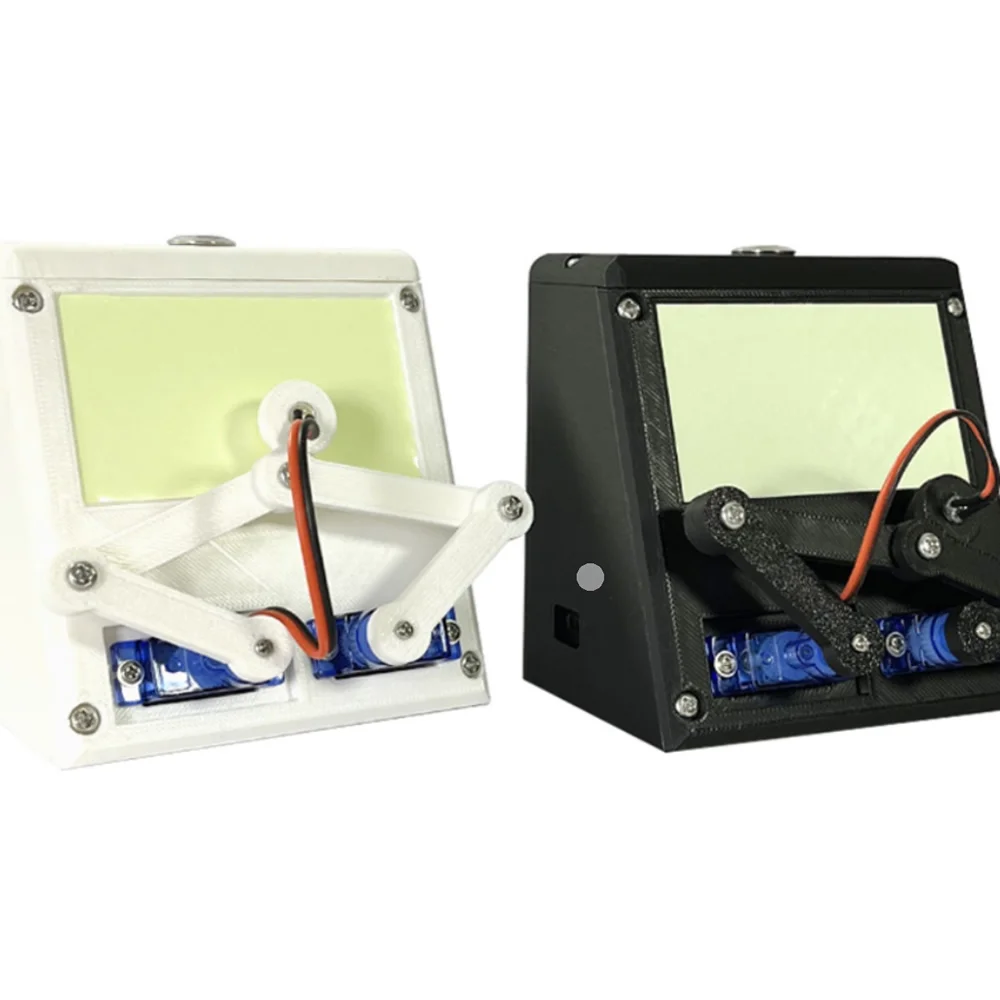
Kreative automatische Schreibzeit-Roboter-Programmieruhr
Instructions for use: The robot will write the time every minute Short press the top switch: write the current time Long press the top switch: write the current date/day of the week The power supply and programming interface use TYPE-C interface. The field has been debugged and there is no need to set it yourself. User Manual Tip: The indicator lights mentioned in the following text refer to the button indicator lights located at the top of the clock. 1. After connecting the power, the indicator light will flash for 5 seconds. During this period, you have the following three options: a. Do nothing: enter manual time writing mode. Press the button once to write the current time, long press the button to write the current date and week. b. Press the button to enter automatic time writing mode. Automatically write the current time every minute. Of course, manual time writing mode can also be used. Reconnecting the power can exit the automatic write time mode. c. Long press button: Enter time setting mode. In the following settings, pressing the button once represents adding 1 to the number, and the indicator light will flash quickly twice. Pressing the button is ineffective when the indicator light is flashing. Press the button continuously, and the number will increase continuously. Press the button and pause for more than 1 second to write the value of the current project for easy viewing. Long press the button to end the current project settings and enter the next project settings. The first project is the current year, such as 2023, with a cycle from 2023 to 2099. The next project is for the current month, such as December, with a cycle from January to December. The next project is the current number of days, for example 1, with a cycle of days 1-31. The next project is the current hour, such as 3, with a cycle of 0-23 hours. The next project is the current minute, for example 15, minutes 0-59 loop. When in the minute project